|
MPP phones can, if configured, connect to a web service control server URL. The phone will initiate this connection to a MPP Control Server that must implement a web service. UPLINX software implements a MPP Control Server. The MPP Control Server can then send commands that must adhere to the Remote MPP SDK API to the phone to send key presses or request screenshot of the phone's display.
How to configure the MPP phone to connect to the MPP Control Server
UPLINX has been working with Cisco for a feature enhancement to enable and configure MPP phones from the Cisco Webex Control Hub (CH). At current this feature is not yet available, hence it must be manually enabled with the following steps FOR EACH MPP PHONE:
1.Contact Cisco TAC Webex and open a case to enable the MPP phone's web page. Supply a list of MAC addresses and your Organization Name and id.
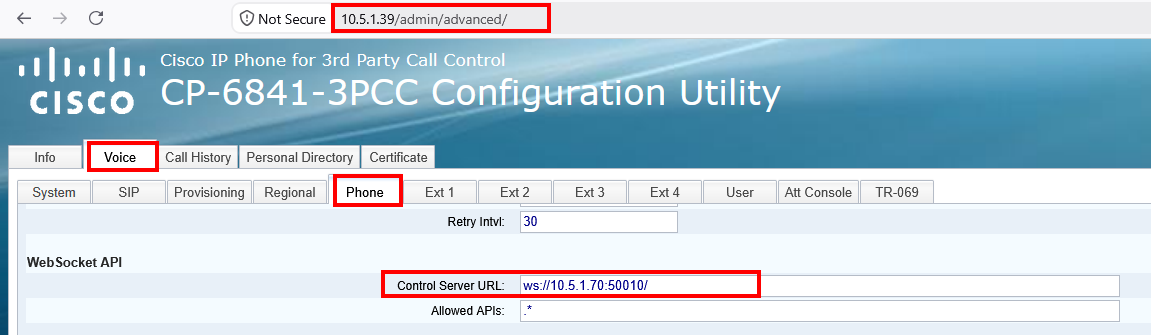
2.Browse to the phone's web page https://<IP of phone>/admin/advanced/
Note the /admin/advanced/.
3.Select the Admin user and enter the password provided to you from step 1.
4.Navigate to the tab Voice > Phone as shown below and insert the URL show in the server tab of UPLINX Phone Control Webex.
Test first with a non-secure URL indicated by ws://.
Once it does work, add security by using a secure URL protected by TLS and a certificate, please see Secure MPP Control Link.
|

