|
Controlling a phone remotely via the Webex Calling API requires a temporary access token. Your user name and password will never be seen by the tool, and are therefore completely safe.
There are two options to obtain a Webex access token. A token is valid for 14 days.
Option 1: OAuth Login (Recommended)
The OAuth method opens a browser window to the official Webex login web page to obtain a Webex access token automatically.
Steps are:
1. In the Server tab of Phone Control tool, click the button [Generate Token with OAuth].
2. A web browser window will open to the Webex login web page.
3. Log in with an admin account for the organization whose phones you want to control. Note: This transmits your credentials only to the official Webex web page and never to the Phone Control tool.
4. A confirmation dialog will appear Click [ok].
5. The tool will confirm receipt of the token, for example: Access Token is valid for 13 days 23 hours, 59 mins
The token is transmitted automatically — no copy/paste is required. You have the option to save the token, though it will automatically be invalid after 14 days.
Timeout of Token
The 14-day token timeout of is set by Cisco and cannot be changed.
Not Saving/Clearing the Token
Your token will be saved with symmetrical encryption to the config file and reloaded for your convenience when the tool is restarted. If you do not want to have it saved, please click the button [Clear Token] on the server tab, and then close the application.
Option 2: Webex Developer Token
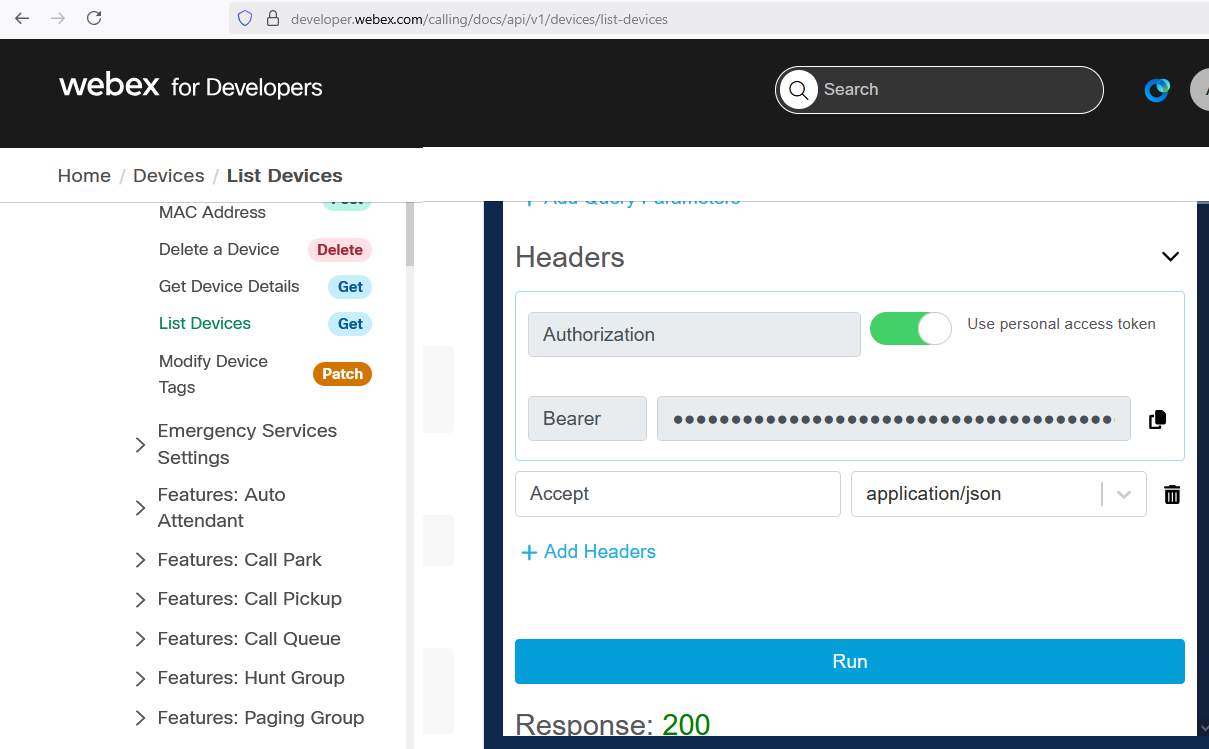
This method lets you manually generate a token on the Webex Developer API web pages. Please see the screenshot below with highlights.
Steps are:
1. Open a browser and navigate to `https://developer.webex.com/calling/docs/api/v1/devices/list-devices`
2. Click on Log in at the top right of the page.
3. On the right content panel, scroll down to the List Devices command and click the large blue [Run] button. Note: this button may require scrolling down to find it.
4. After the API call runs, locate the Bearer field in the Authorization header. Note: The Bearer field value is the token.
5. Copy the Bearer token by clicking the icon to the right of the field.
6. In the Server tab of Phone Control tool, paste the Bearer token value into the Token field, and then press the button [Test].
|

